Shadow IT · Shadow IT risk and policy
"Sign in with Google" at Work: What Employees Are Approving
By ThamimPublished October 26, 20266 min read
A plain Sign in with Google shares only the person's name, email address and profile photo, which is low risk. The risk comes when the same button also asks for access to Calendar, Drive or Gmail. Some apps ask for that at sign-up, on the same consent screen, and people click Allow without reading it. IT can let basic sign-in through while requiring approval for anything more.
Who this is for: IT managers at Google Workspace companies deciding whether to allow Sign in with Google on work accounts.
What does Sign in with Google share by default?
A basic Sign in with Google asks for three scopes:
| Scope | Google's consent text | What the app gets |
|---|---|---|
openid | Associate you with your personal info on Google | Confirms who the user is |
email | See your primary Google Account email address | The work email address |
profile | See your personal info, including any personal info you've made publicly available | Name and profile photo |
With only these, an app can't read email, files or calendars. Compared with a new username and password for every tool, it's often safer: no extra password to reuse, and once you suspend the Google account, the person can't use it to sign in to the app again.
When Sign in with Google asks for more
Some apps use the same button to ask for data access as well. The consent screen lists extra permissions, and many people approve them without reading.
We clicked the Google sign-up button on several popular apps on 2026-10-19 and recorded what each asked for. We didn't grant consent.
| App | What it asks for at Google sign-up | Extra access |
|---|---|---|
| Grammarly | email, profile, openid | None. No offline access |
| Notion | profile, email with offline access | None beyond sign-in |
| Zapier | profile, email with offline access | None at sign-up. Each Zap that uses Google asks separately |
| Fathom | Sign-in plus calendar.events.readonly, offline access | Every calendar event |
| Fireflies.ai | Sign-in plus calendar.readonly, offline access | Every calendar the user can see |
| Calendly | Sign-in plus calendar | Full control of calendars |
| Read AI (sign-up) | Sign-in plus calendar.readonly, calendar.events, two Google Meet scopes, offline access | Calendar read and write, Meet records and media |
| Read AI (sign-in) | openid, userinfo.email, userinfo.profile | None |
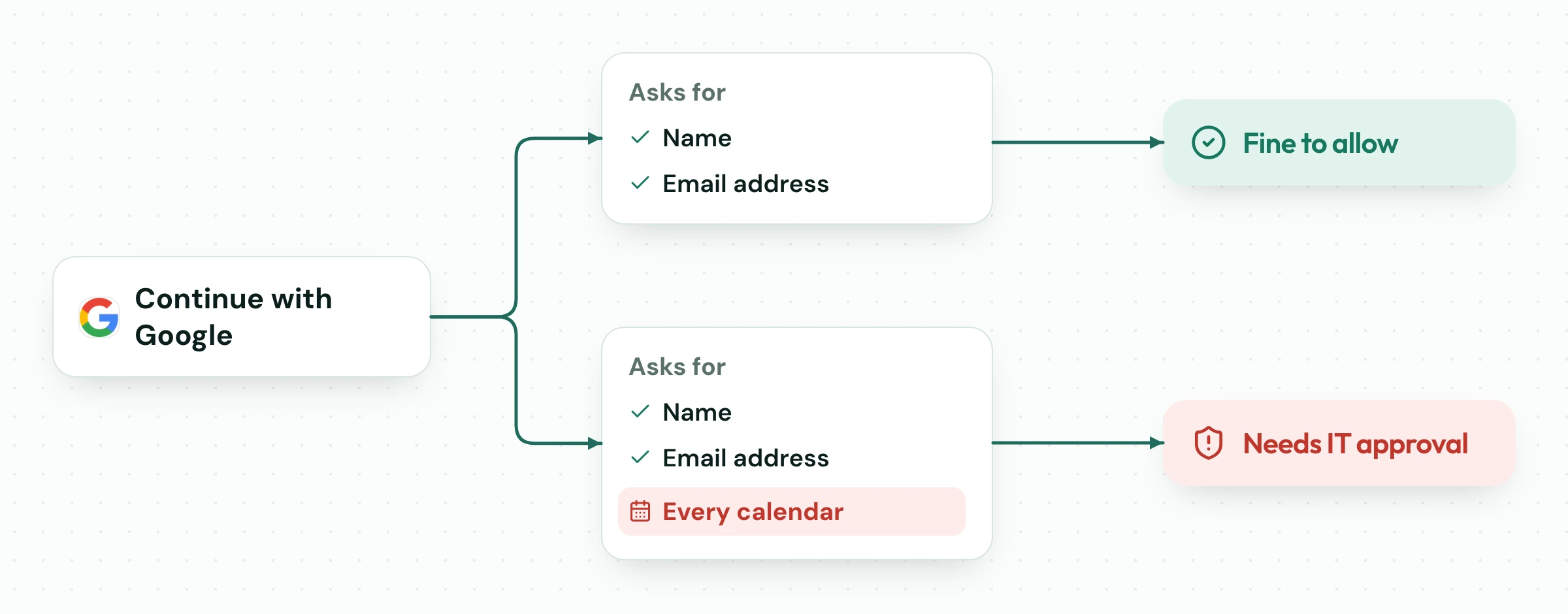
Two things stand out:
- The same button can mean different things. Read AI's sign-in button asks only for identity. Its sign-up button asks for calendar write access and Google Meet access.
- The tool's main feature decides what it asks for. Writing and workspace tools ask for identity only. Meeting and scheduling tools ask for calendar access at the first click.
For what each scope allows, see Google Workspace OAuth scopes explained.
What are the security risks of Sign in with Google at work?
| Risk | What happens |
|---|---|
| Data access approved on the same screen | Someone approves calendar or Drive access while trying to create an account |
| Access that keeps working | Apps with offline access keep syncing until someone revokes them |
| No record in IT | Nobody in IT knows which tools people signed up for unless someone checks |
| Company data in unapproved tools | Even with sign-in only, people upload files and paste data into the tool |
| Access after someone leaves | Grants and app accounts can outlive the employee unless offboarding covers them |
| Unverified apps | Apps Google hasn't verified show a warning screen, and people can click through it |
Is Sign in with Google safe for work accounts?
Basic Sign in with Google is reasonable for most companies. It gives you one place to see every tool people sign up for, and suspending the Google account stops new sign-ins everywhere it's used.
The part to control is the extra access. A sign-in that also grants full calendar or Drive access is a data-sharing decision, and it shouldn't be made by whoever happened to click the button.
How IT can control it
1. Allow sign-in, require approval for data access
In the Admin console, go to Security > Access and data control > API controls > Manage App Access > Settings. For apps you haven't configured, choose:
Allow users to access third-party apps that only request basic info needed for Sign in with Google
People can still sign in to new tools. Apps that ask for Calendar, Drive or Gmail access need an admin to approve them first. Google also lets you show a custom message and let users request access, so requests come to you.
2. Review what's already connected
Under Manage App Access > Accessed apps, sort by users and open each app to see its scopes. Anything with Drive, Gmail or full Calendar access needs a decision. Walkthrough: how to detect shadow AI in Google Workspace.
3. Approve the apps people need
Set apps you've reviewed to Trusted, or to Specific Google data so they can only use the scopes you choose.
4. Tell people what the consent screen means
A two-line note helps: "Sign in with Google is fine. If the screen also asks to see your calendar, Drive or email, check with IT first."
5. Include connected apps in offboarding
When someone leaves, review their connected apps under Directory > Users > [user] > Security > Connected applications and remove anything that shouldn't stay.
FAQ
Does Sign in with Google give an app access to my Gmail?
Not by default. Basic sign-in shares name, email address and profile photo. An app only gets Gmail access if it asks for a Gmail scope and the person approves it on the consent screen.
Is Sign in with Google safer than a password?
For most tools, yes. There's no new password to reuse or leak, and suspending the Google account stops new sign-ins. The risk is in the extra permissions some apps ask for on the same screen.
Can IT see which apps employees signed in to with Google?
Yes. In the Admin console, Manage App Access > Accessed apps lists them, and Reporting > Audit and investigation > OAuth log events shows who authorized each one.
Can I block Sign in with Google for all third-party apps?
Yes. Under Manage App Access > Settings, choose Don't allow users to access any third-party apps. Most companies find this too strict, because people switch to separate passwords instead.
Why did an app ask for my calendar when I just wanted to sign up?
Its main feature probably depends on your calendar, as with meeting note-takers and scheduling tools. Check whether you need that feature before you approve.
Doing this with AppControler
AppControler lists every app people have connected with Sign in with Google on work accounts, and separates sign-in-only apps from apps that hold data access. Each scope is shown in plain English, with who connected the app and how many people use it. The Free plan covers up to 25 apps.
AppControler sees apps connected through Google Workspace sign-in. It doesn't see tools people sign up for with a separate username and password.
See what people approved
List every app employees connected with Sign in with Google, split into sign-in only and apps with data access.
Check my WorkspaceRead-only access. We never read email or file contents.