Shadow AI · Finding shadow AI
How to Detect Shadow AI in Google Workspace, Step by Step
By ThamimPublished October 26, 20268 min read
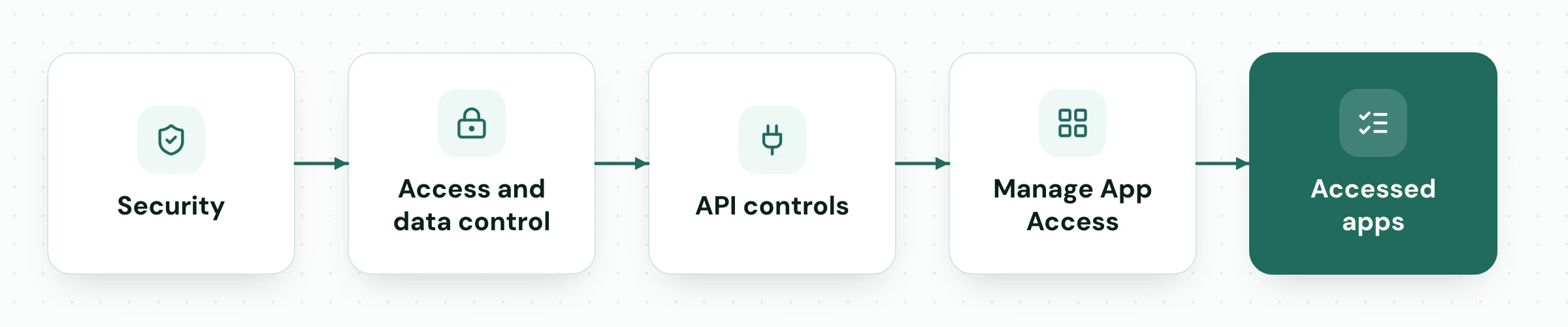
To detect shadow AI in Google Workspace, open the Admin console, go to Security > Access and data control > API controls > Manage App Access, and review the Accessed apps list. Each app shows how many users connected it and which Google services it can reach. Pick out the AI tools, check their scopes, then use the OAuth log to see who connected each one.
Who this is for: IT managers and ops leads at Google Workspace companies without a dedicated security team.
What you need: a super admin account, or an admin role with the Security and Reporting privileges. About an hour for the first pass.
What counts as shadow AI in Google Workspace?
Shadow AI is any AI tool employees use with company data or company accounts that IT hasn't reviewed. In a Google Workspace company, the version you can detect is an AI app someone connected with Sign in with Google on their work account and granted access to Gmail, Drive, Calendar or Contacts.
Common examples:
| Type | Examples | Usual access |
|---|---|---|
| Meeting note-takers | Otter.ai, Fireflies.ai, Read AI, Fathom | Calendar, sometimes Meet or Contacts |
| AI assistants with connectors | ChatGPT, Claude, Perplexity | Drive, Gmail, Calendar when a connector is added |
| Writing tools | Grammarly and similar | Basic profile, sometimes Docs or Drive |
| Automation and agents | Zapier, AI agent builders | Whatever each connected workflow needs |
Every one of these leaves an OAuth grant in your Workspace: the app, the person who approved it, and the scopes they approved. Those grants are what you'll be reading.
Step 1: Open the list of apps that have accessed your data
- Sign in to admin.google.com.
- Go to Menu > Security > Access and data control > API controls.
- Click Manage App Access. (Older guides call this "Manage Third-Party App Access". Google renamed it. Path checked 2026-10-26.)
- Under Accessed apps, click View list.
The Accessed apps list shows every app that has used Google sign-in or Google APIs in your domain, including apps nobody in IT has configured. The Configured apps list only shows apps an admin has already set a policy for, so most shadow AI will be in Accessed apps.
Step 2: Sort by users and read the requested services
The Accessed apps list has two columns that matter most:
- Users: how many people in your domain have connected the app.
- Requested services: which Google services the app is using, for example Gmail, Google Calendar or Google Drive.
Sort by Users first. An AI tool with 30 users is a decision you need to make this week. A tool with one user can wait for the end of the review.
Then scan Requested services. An app that only shows sign-in has the user's name and email address. An app that shows Drive or Gmail can read company data.
Step 3: Open each app and expand its scopes
Click an app to open its details page. You'll see the full OAuth client ID, the number of users, links to the vendor's privacy policy and support pages, and the services it requests. Click Expand All to see every individual scope.
Google doesn't show scopes for Google-owned apps, so skip those.
The scope string is what tells you what the app can do. These are the ones to look for first:
| Scope | Google's consent screen text | What it means |
|---|---|---|
https://www.googleapis.com/auth/drive | See, edit, create, and delete all of your Google Drive files | Full access to every file the person can open, including shared drives |
https://www.googleapis.com/auth/drive.readonly | See and download all your Google Drive files | Can read and download every file the person can open |
https://mail.google.com/ | Read, compose, send, and permanently delete all your email from Gmail | Full mailbox access |
https://www.googleapis.com/auth/gmail.readonly | View your email messages and settings | Can read every email |
https://www.googleapis.com/auth/calendar.readonly | See and download any calendar you can access using your Google Calendar | Every meeting, attendee and meeting link the person can see |
https://www.googleapis.com/auth/drive.file | See, edit, create, and delete only the specific Google Drive files you use with this app | Only files the person picks or creates with the app. Much narrower than drive |
Consent text is quoted from Google's OAuth 2.0 scopes list. For the full list, see Google Workspace OAuth scopes explained.
Step 4: Pick out the AI tools
Google doesn't label apps as AI. You have to sort them yourself:
- Go down the Accessed apps list and mark every app name you don't recognise.
- Search each one. Check the vendor's homepage for words like "AI notetaker", "AI assistant", "copilot", "agent" or "GPT".
- Check the vendor's privacy policy or trust page for whether customer data is used to train models, and whether that changes between free and business plans.
- Note the category: meeting recorder, writing tool, coding tool, AI assistant, automation.
This is the slowest part of the job, and the list gets longer the more people you have.
Step 5: Find out who connected each AI tool
The Accessed apps list tells you how many users, not which ones. To get names, use the OAuth log:
- Go to Menu > Reporting > Audit and investigation > OAuth log events.
- Add a filter for Application name and enter the app.
- Add a filter for Event and choose Grant to see who authorized it.
You need the Audit & Investigation admin privilege. The log shows the last 7 days by default, so widen the date range. How far back you can go depends on Google's data retention and lag times for your edition.
You can also see one person's connected apps under Directory > Users > [user] > Security > Connected applications.
Step 6: Decide what to do with each app
Back in Manage App Access, every app can be given one of four access settings (Google's documentation):
| Setting | What it does |
|---|---|
| Trusted | Can access all Google Workspace services, including restricted ones |
| Limited | Can only access Google services you haven't restricted |
| Specific Google data | Can only request the scopes you choose |
| Blocked | Can't access any Google service |
For most AI tools you'll end up with three groups:
- Approve: the tools people need and you're comfortable with. Mark them Trusted or Specific Google data.
- Review: tools with broad access or unclear training policies. Ask the person who connected it what they use it for before you decide.
- Block: tools you don't want touching company data.
Before you block a tool with many users, tell those users first. Blocking cuts off their workflow immediately and they will look for another tool, often one you'll find on next month's list.
Step 7: Stop new apps getting full access by default
Under Manage App Access > Settings, Google lets you choose what happens with apps you haven't configured:
- Allow users to access any third-party apps (the default)
- Allow users to access third-party apps that only request basic info needed for Sign in with Google
- Don't allow users to access any third-party apps
The middle option is a reasonable default for many small companies. People can still sign in to new tools with Google, but any app asking for Drive, Gmail or Calendar access needs IT approval first. You can also let users request access to blocked apps, so requests come to you instead of being worked around.
Step 8: Repeat it
New grants appear every time someone clicks Allow. A one-off review is out of date within weeks. Put a monthly reminder in your calendar to recheck the Accessed apps list and the OAuth log for new Grant events.
What this method doesn't catch
The Admin console only sees apps connected with a Google work account. It doesn't see:
- AI tools used in a browser with a personal account, where someone pastes in company data
- Browser extensions and desktop apps that don't use Google sign-in
- Personal API keys used in scripts or code
- Paid AI subscriptions on a company card that never touch Google sign-in
For those, check expense reports and card statements, and ask teams directly.
FAQ
Can I detect shadow AI in Google Workspace for free?
Yes. The Accessed apps list and the OAuth log are included in Google Workspace at no extra cost. The cost is time: looking up each unknown app and translating its scopes by hand.
Does the Accessed apps list show apps people connected years ago?
It shows apps that have accessed Google data in your domain. To see when a specific grant happened, filter the OAuth log by application name and the Grant event, keeping your edition's log retention in mind.
Will blocking an app revoke access people already granted?
A Blocked app can't access any Google service, so existing users lose access. Tell them before you change the setting.
Do ChatGPT and Claude show up in the list?
They show up when someone adds a Google connector, such as Google Drive or Gmail, to their account using their work Google account. Using ChatGPT or Claude in a browser without a Google connector leaves no OAuth grant.
How often should I check for new AI tools?
Monthly at minimum. Weekly if your company adopts tools quickly or you've just tightened your policy and want to see what people try next.
Doing this with AppControler
AppControler reads the same OAuth grants through the Google Admin SDK and does steps 2 to 5 for you. It lists every connected app with the people who connected it, translates each scope into plain English, separates out the AI tools with a risk level, and lets you mark each one Approved, Review or Blocked. The Free plan shows up to 25 apps with a manual sync. Pro runs scheduled scans so new apps show up without you checking. To audit every app, not only AI tools, see how to find shadow IT in Google Workspace.
AppControler sees apps connected through Google Workspace sign-in. It doesn't see browser-only AI tools used with a personal account, browser extensions or personal API keys.
Skip the manual review
AppControler lists every AI tool connected to your Google Workspace, who connected it, and what each one can read.
Scan my Workspace freeRead-only access. We never read email or file contents.