Shadow IT · Finding and auditing connected apps
Free Shadow IT Discovery and Detection Tools: Find and Fix Risky SaaS Apps (2026)
By ThamimPublished October 26, 2026Updated November 24, 20269 min read
You can find most shadow IT for free. In Google Workspace, the Accessed apps list in the Admin console shows every app employees connected with their work account, and the OAuth log shows who connected each one. Microsoft 365 has the same in Enterprise applications in Entra. Free scanners such as Stitchflow's Shadow IT Scanner and AppControler's Free plan do the scope translation for you. None of these see tools paid for on a card without a work sign-in, so check expenses too.
Who this is for: IT managers at Google Workspace or Microsoft 365 companies who need a shadow IT inventory without buying a SaaS management platform.
Free shadow IT discovery tools compared
| Tool | Works with | What it finds | What it misses | Cost |
|---|---|---|---|---|
| Google Admin console: Accessed apps | Google Workspace | Every app connected with a work Google account, user counts, requested services | Who connected each app (use the OAuth log); tools without Google sign-in | Included in Workspace |
| Google OAuth log events | Google Workspace | Who granted or revoked each app, and when | Apps used before your log retention window | Included in Workspace |
| GAM (command line) | Google Workspace | Every OAuth token for every user, exported to a sheet | Needs setup and comfort with a terminal | Free, open source |
| Microsoft Entra: Enterprise applications | Microsoft 365 | Apps users and admins have consented to, with their permissions | Tools without Microsoft sign-in | Included in Microsoft 365 |
| Stitchflow Shadow IT Scanner | Google Workspace, Microsoft 365 | SaaS and AI apps tied to work accounts, with OAuth scope risk levels | Tools without a work sign-in | Free |
| AppControler Free plan | Google Workspace (Microsoft 365 in Beta) | Up to 25 connected apps, who connected each, scopes in plain English, AI tools flagged | More than 25 apps; scheduled rescans are on Pro | Free |
| Expense and card statements | Any | Paid software, including tools with no work sign-in | Free tools and personal-account use | Free |
Prices and features checked 2026-10-26.
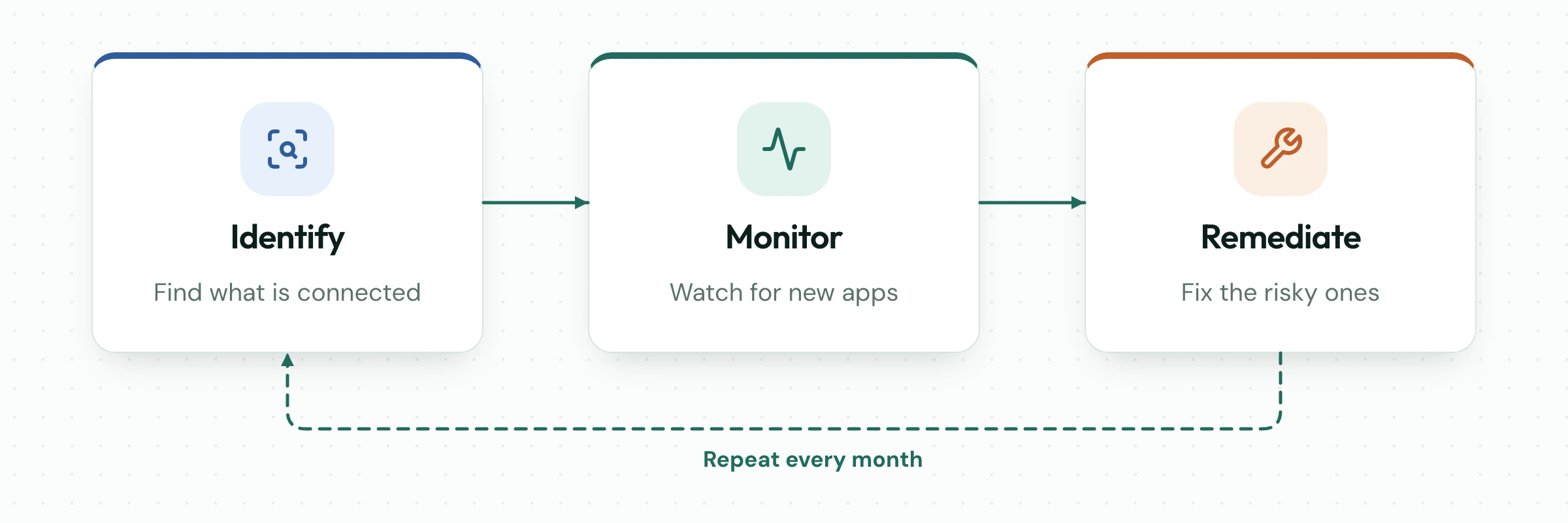
Part 1: Identify the apps
1. Google Admin console: Accessed apps
The fastest free starting point for a Google Workspace company.
- Go to Menu > Security > Access and data control > API controls > Manage App Access.
- Under Accessed apps, click View list.
- Sort by Users. Open each app and click Expand All to see its OAuth scopes.
The list shows every app that has used Google sign-in or Google APIs in your domain. What it doesn't show is the names of the people who connected each app, or what each scope means in plain terms. For that, see the Google Workspace OAuth scopes reference.
2. Google OAuth log events
The OAuth log gives you names and dates.
- Go to Menu > Reporting > Audit and investigation > OAuth log events.
- Filter by Event: Grant to see every new app authorization, or by Application name to see everyone who connected one app.
It shows the last 7 days by default. Widen the date range, and check Google's retention limits for your edition. You need the Audit & Investigation admin privilege.
3. GAM
GAM is a free, open-source command-line tool for Google Workspace admins. Once it's set up, one command exports every OAuth token for every user:
gam all users print tokensYou get a row per user per app with the client ID, app name and scopes, ready to sort in a spreadsheet. It's the best free option if you want a complete export and don't mind a terminal.
4. Microsoft Entra: Enterprise applications
For Microsoft 365, go to the Entra admin center and open Enterprise applications. Each app shows its users and the permissions it was granted, split into admin consent and user consent. Under Consent and permissions you can see and change whether users are allowed to consent to apps themselves.
5. Stitchflow Shadow IT Scanner
A free app on the Google Workspace Marketplace that lists SaaS and AI apps tied to your Google Workspace or Microsoft 365 accounts and rates them by OAuth scope risk. It needs to be installed by an admin account.
6. AppControler Free plan
AppControler connects to Google Workspace and lists every connected app, who connected it, and what each scope allows in plain English. AI tools are separated into their own list with a risk level. The Free plan shows up to 25 apps with a manual sync. More on it below.
7. Expense and card statements
Every method above depends on a work sign-in. Software paid for on a company card with a username and password won't show up. Export 12 months of card and expense data and pull out every software vendor. This also gives you contract owners for your renewal tracker.
Shadow IT discovery worksheet
Put what you find in one sheet before deciding anything. The free shadow IT discovery worksheet (CSV, opens in Google Sheets or Excel) has a row per app with these columns:
| Column | What to put in it |
|---|---|
| Found in | Accessed apps, OAuth log, Entra, a scanner or expenses |
| Who connected or pays | The person to ask about it |
| Access granted | The scopes, e.g. Gmail read, Drive full access |
| Data it can reach | Customer emails, contracts, source code |
| Risk | High, Medium or Low, from the access and the data |
| Decision | Approve, Review or Block |
| Owner and next step | Who follows up, and what they do |
Fill it in during Part 1, then use the Decision column for Part 3.
Part 2: Monitor for new apps
Finding apps once is the easy part. New grants appear every time someone clicks Allow.
| Method | How | Effort |
|---|---|---|
| Monthly OAuth log check | Filter OAuth log events by Event: Grant for the last 30 days | 15 minutes a month |
| Monthly Accessed apps check | Compare the list against last month's export | 30 minutes a month |
| Scheduled GAM export | Run gam all users print tokens on a schedule and compare files | Setup once, then automatic |
| Free scanner alerts | Stitchflow's scanner offers alerts when new or high-risk apps gain users | Automatic |
| AppControler | Manual sync on Free, scheduled scans on Pro. Slack alerts when a new high-risk app appears | Automatic on Pro |
Whichever you pick, put it in your calendar. A monthly check that happens beats a weekly one that doesn't.
Part 3: Remediate risky apps
Not every unapproved app needs blocking. Decide in this order.
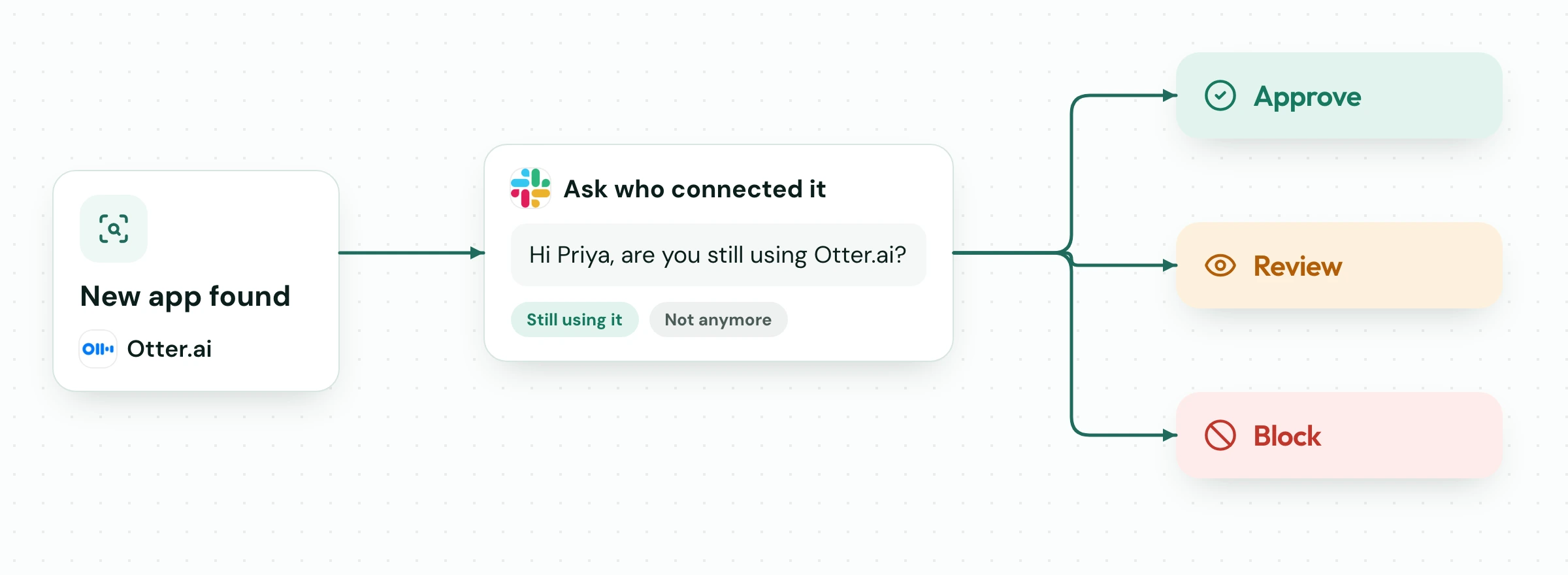
1. Ask the person who connected it
Before you remove anything, ask what they use it for. Often the answer is "I tried it once," and they'll remove it themselves. Sometimes it's a tool a whole team depends on, and you'd rather approve it properly than break their work.
2. Decide: approve, review or block
| Decision | When | What to do |
|---|---|---|
| Approve | Needed, reasonable access, acceptable vendor | Set to Trusted or Specific Google data in Manage App Access. Add it to your approved list |
| Review | Broad access (full Drive or Gmail), unclear data use | Ask the user, check the vendor's security page, decide within two weeks |
| Block | Not needed, or access you won't accept | Set to Blocked in Manage App Access |
3. Revoke access
Block an app for everyone (Google Workspace): in Manage App Access, open the app and set it to Blocked. Google's description is that a Blocked app "can't access any Google service" (Google). Tell users first.
Remove an app for one person (Google Workspace): go to Directory > Users, open the user, then Security > Connected applications, and remove the app.
Microsoft 365: in Entra Enterprise applications, open the app and remove the granted permissions, or turn off Enabled for users to sign in.
4. Change the default for new apps
In Google Workspace, under Manage App Access > Settings, choose Allow users to access third-party apps that only request basic info needed for Sign in with Google. People can still sign in to new tools, but apps that ask for Drive, Gmail or Calendar need IT approval. In Microsoft 365, the matching control is the user consent setting in Entra.
5. Clean up on offboarding
Grants can keep working after someone leaves, depending on how the account is handled. When someone leaves, review and revoke their connected applications as part of your offboarding checklist.
Which free tool should you start with?
- Under 50 people, Google Workspace: the Accessed apps list and OAuth log are enough to start. Add a free scanner if you want scopes translated.
- 50 to 200 people: a free scanner saves hours on scope lookups. GAM if you're comfortable in a terminal.
- Microsoft 365: Entra Enterprise applications first.
- Any size: do the expense review. It finds things nothing else does.
FAQ
What is shadow IT discovery?
Finding the software employees use without IT approval. The most reliable free starting point is the list of apps connected to work accounts in the Google Admin console or Microsoft Entra, followed by card and expense data for paid tools.
What is the best free shadow IT discovery tool?
For Google Workspace, start with the Admin console's Accessed apps list and OAuth log events. If you want AI tools flagged and scopes explained, use a free scanner such as AppControler's free plan or Stitchflow's Shadow IT Scanner.
Is there a completely free shadow IT discovery tool?
Yes. The Google Admin console's Accessed apps list and OAuth log, Microsoft Entra's Enterprise applications page, GAM and Stitchflow's scanner are all free. AppControler has a free plan for up to 25 apps.
Do free tools find every shadow IT app?
No. They find apps connected with a work Google or Microsoft account. Tools used with personal accounts or paid for on a card without a work sign-in need an expense review.
Is it safe to install a free shadow IT scanner?
Check what it asks for before you approve it. A scanner needs to read your list of connected apps. Look for scopes limited to what it needs and a clear privacy policy.
How often should I check for new shadow IT?
At least monthly. New apps appear every time someone signs in to a new tool with their work account.
Doing this with AppControler
AppControler's Free plan lists up to 25 connected apps from your Google Workspace. For each app you see who connected it, how many people use it, and what each scope allows in plain English. AI tools are pulled into their own list with a risk level. You can mark apps Approved, Review or Blocked, message the person who connected it from Slack, and add apps you keep to the renewal tracker.
Pro ($99 a month flat) adds unlimited apps, scheduled scans and alerts. For a step-by-step audit in the Admin console and how to automate the follow-up, see how to find shadow IT in Google Workspace.
AppControler sees apps connected through Google Workspace sign-in, and Microsoft 365 in Beta. It doesn't see browser extensions, desktop apps, tools used with personal accounts, or software paid for without a work sign-in. Blocking an app in AppControler records your decision; to cut off access, block it in the Google Admin console as described above.
Run the free scan
Up to 25 connected apps, who connected each one, and every scope in plain English.
Start my free scanRead-only access. We never read email or file contents.