Shadow AI · Risk and data exposure
What AI Meeting Note-Takers Can Access: Read AI, Fireflies, Fathom and Otter Compared
By ThamimPublished October 26, 20266 min read
All four popular AI note-takers ask for calendar access when someone signs up, which lets them find and join every meeting with a link. Read AI asks for the most: calendar write access plus Google Meet or Teams meeting access. Fathom asks for the least: read-only access to calendar events. Fireflies.ai and Otter.ai sit in between, and Otter also reads contacts. All four keep access after the user signs out until someone revokes it.
Who this is for: IT managers who found an AI note-taker in their Google Workspace or Microsoft 365 and want to know what it can reach.
How we got this data: we clicked each vendor's "Continue with Google" and "Continue with Microsoft" sign-up buttons on 2026-10-19 and read the scopes from the sign-in request. We never granted consent. Otter.ai's Microsoft 365 permissions come from its documentation and its Google scopes weren't captured live. Vendors can change what they ask for, and optional integrations ask for more.
Permissions at sign-up compared
| Read AI | Fireflies.ai | Fathom | Otter.ai | |
|---|---|---|---|---|
| Google Calendar | calendar.readonly + calendar.events (read and write) | calendar.readonly | calendar.events.readonly | Calendar (read) |
| Google Meet | meetings.space.readonly + meetings.conference.media.readonly | None | None | None |
| Google Contacts | None | None | None | Contacts (read) |
| Microsoft 365 calendar | Calendars.ReadWrite | Calendars.Read | Calendars.Read | Calendars.Read |
| Microsoft Teams meetings | OnlineMeetings.ReadWrite | None | None | None |
| Microsoft 365 contacts | None | None | None | Contacts.Read |
| Keeps access after sign-out | Yes | Yes | Yes | Yes |
| Can change calendar events | Yes | No | No | No |
| Joins meetings on its own | Yes, unless turned off | Yes, with auto-join | Yes, by user's recording rules | Yes |
| Sends notes to attendees | Depends on settings | Optional, can share recaps with all invitees | Optional, auto-share emails every invitee | Optional, can share with calendar contacts |
What calendar access lets a note-taker do
Calendar access is the permission that matters most. With it, a note-taker can:
- See every meeting on the person's calendar, with titles, attendees, descriptions and meeting links
- With
calendar.readonly, see colleagues' calendars that are shared with the person too - Join any meeting that has a link, as a participant, and record it
- Email a summary to everyone on the invite, including external guests
The difference between scopes matters. Google describes calendar.readonly as "See and download any calendar you can access using your Google Calendar," which includes shared calendars. calendar.events.readonly, which Fathom uses, covers "View events on all your calendars" and not calendar settings or sharing. Read AI's calendar.events adds "View and edit events on all your calendars."
Read AI
Asks for: at Google sign-up, calendar.readonly, calendar.events, meetings.space.readonly and meetings.conference.media.readonly, plus sign-in scopes, with offline access and a forced consent screen. At Microsoft sign-up, Calendars.ReadWrite and OnlineMeetings.ReadWrite, plus offline_access.
Why it matters: Read AI can create, change and delete calendar events, not only read them. It uses this to attach summaries to events and schedule meetings on request. The Meet scopes let it read conference records and, through Google's Meet Media API, capture meeting audio and video. Gmail, Drive, Slack and CRM integrations are optional and each one is a separate grant.
Full breakdown: Read AI permissions.
Fireflies.ai
Asks for: at Google sign-up, calendar.readonly plus email and profile, with offline access. At Microsoft sign-up, Calendars.Read, User.Read and offline_access.
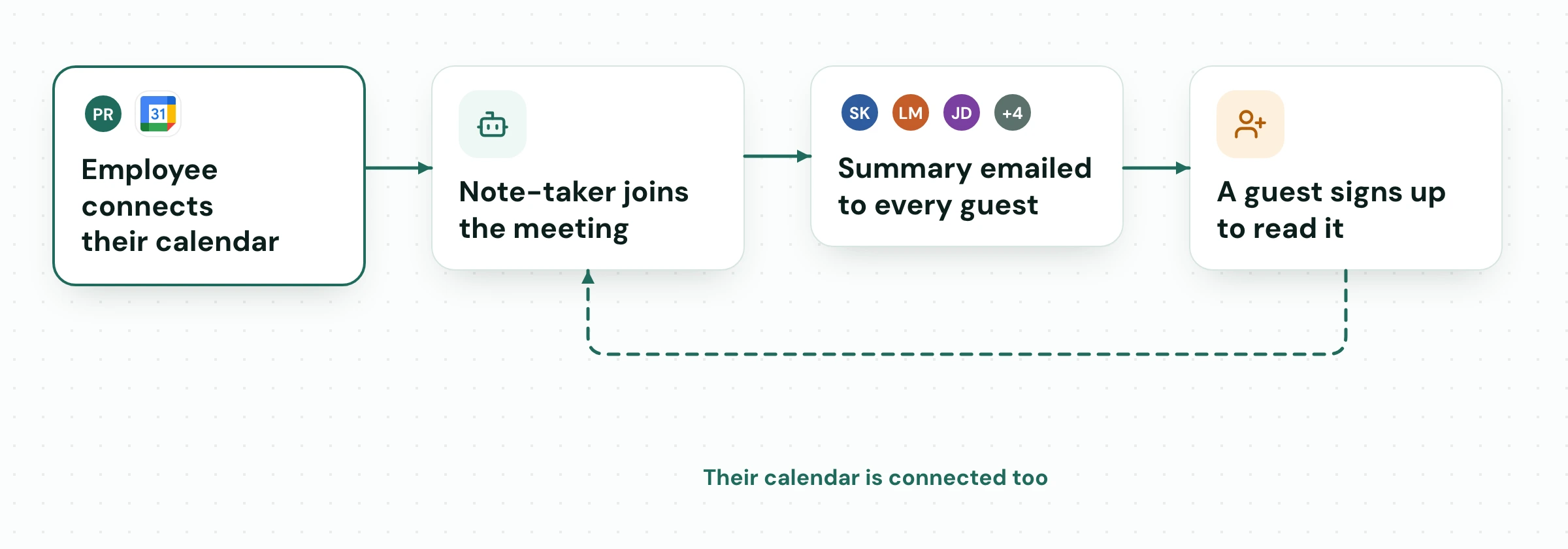
Why it matters: read-only calendar access is enough for the Fireflies bot to find and join every meeting with a link. Fireflies can share recaps with all invitees. People who sign up to view a recap connect their own calendars, so one user can bring in several more without IT seeing it.
Full breakdown: Fireflies.ai permissions.
Fathom
Asks for: at Google sign-up, calendar.events.readonly plus sign-in scopes, with offline access. At Microsoft sign-up, Calendars.Read, User.Read and offline_access.
Why it matters: Fathom asks for the least of the four, but it's still enough to record every meeting the user's rules allow. With auto-share on, Fathom emails the summary, or the summary and recording, to every attendee on the invite right after the call, including people who didn't attend.
Full breakdown: Fathom permissions.
Otter.ai
Asks for: on Microsoft 365, Calendars.Read, Contacts.Read, User.Read, offline_access and sign-in scopes, per Otter's documentation. On Google, calendar and contacts access. Enterprise add-ons ask for more when a workspace turns them on.
Why it matters: Otter is the only one of the four that reads contacts. Its Notetaker joins scheduled meetings automatically once a calendar is connected, and it can share conversations with calendar contacts. That's why people outside your company sometimes get Otter emails after a meeting.
Full breakdown: Otter.ai permissions.
What are the security risks of AI note-takers?
| Risk | What happens |
|---|---|
| Recording without clear consent | The bot joins meetings automatically. Not everyone on the call may know it's recording, which matters for customer calls and in places with consent laws. |
| Summaries sent outside the company | Auto-share emails meeting content to every invitee, including external guests. |
| Sensitive meetings recorded | Board, HR, legal and customer calls on the user's calendar get recorded if the rules allow it. |
| Spread without IT | Recipients sign up to read a summary and connect their own calendars. |
| Access that outlives use | Offline access keeps syncing. Someone who stopped using the tool but never disconnected it can still have a bot joining their meetings. |
| Data used by the vendor | Recordings and transcripts sit on the vendor's servers. Check each vendor's data retention and model training terms for your plan. |
How to control AI note-takers as IT
Find who connected them
In Google Workspace, go to Security > Access and data control > API controls > Manage App Access > Accessed apps, then use Reporting > Audit and investigation > OAuth log events filtered by app name to see who connected each one. In Microsoft 365, check Enterprise applications in the Entra admin center. Step by step: how to detect shadow AI in Google Workspace.
Pick one and approve it
If people want meeting notes, approving one tool with settings you've checked works better than blocking all of them. Set it to Trusted or Specific Google data in Manage App Access, and block the others.
Check its settings
For the tool you approve, check: auto-join rules (internal only, external only, or manual), who gets summaries automatically, recording retention, and whether recordings are used for model training on your plan.
Remove leftover access
Ask people who no longer use a note-taker to disconnect it, or remove it under Directory > Users > [user] > Security > Connected applications. Include connected apps in your offboarding checklist.
FAQ
Which AI note-taker asks for the fewest permissions?
Of the four, Fathom asks for the least at sign-up: read-only access to calendar events plus basic profile. That's still enough to join and record meetings.
Can AI note-takers read my email?
Not at sign-up, for any of these four. Read AI offers optional email integrations that ask for separate access. Check each app's scopes in the Admin console to see what was granted in your domain.
Can I stop note-takers joining external meetings?
Inside your company, yes, by blocking the app or tightening its settings. You can't control a note-taker an external guest brings to your meeting. Meeting hosts can remove bots from the call.
Does blocking a note-taker in Google Workspace stop the bot joining meetings?
Blocking stops the app using Google data, including the calendar it uses to find meetings. A user could still invite the bot to a meeting manually from a personal account.
Why do these apps keep access after sign-out?
They ask for offline access so they can keep syncing the calendar and join meetings when the user isn't active. Access stays until the user disconnects it or an admin revokes it.
Doing this with AppControler
AppControler lists every AI note-taker connected to your Google Workspace, who connected each one, and what its scopes allow in plain English. You can mark each one Approved, Review or Blocked, and message the person who connected it from Slack to ask if they still use it. The Free plan covers up to 25 apps.
AppControler sees note-takers connected through Google Workspace sign-in. It doesn't see a note-taker someone uses with a personal account and invites to meetings manually.
Find the note-takers in your Workspace
See which AI note-takers are connected, who connected them, and whether they hold calendar write or Meet access.
Find note-takersRead-only access. We never read email or file contents.